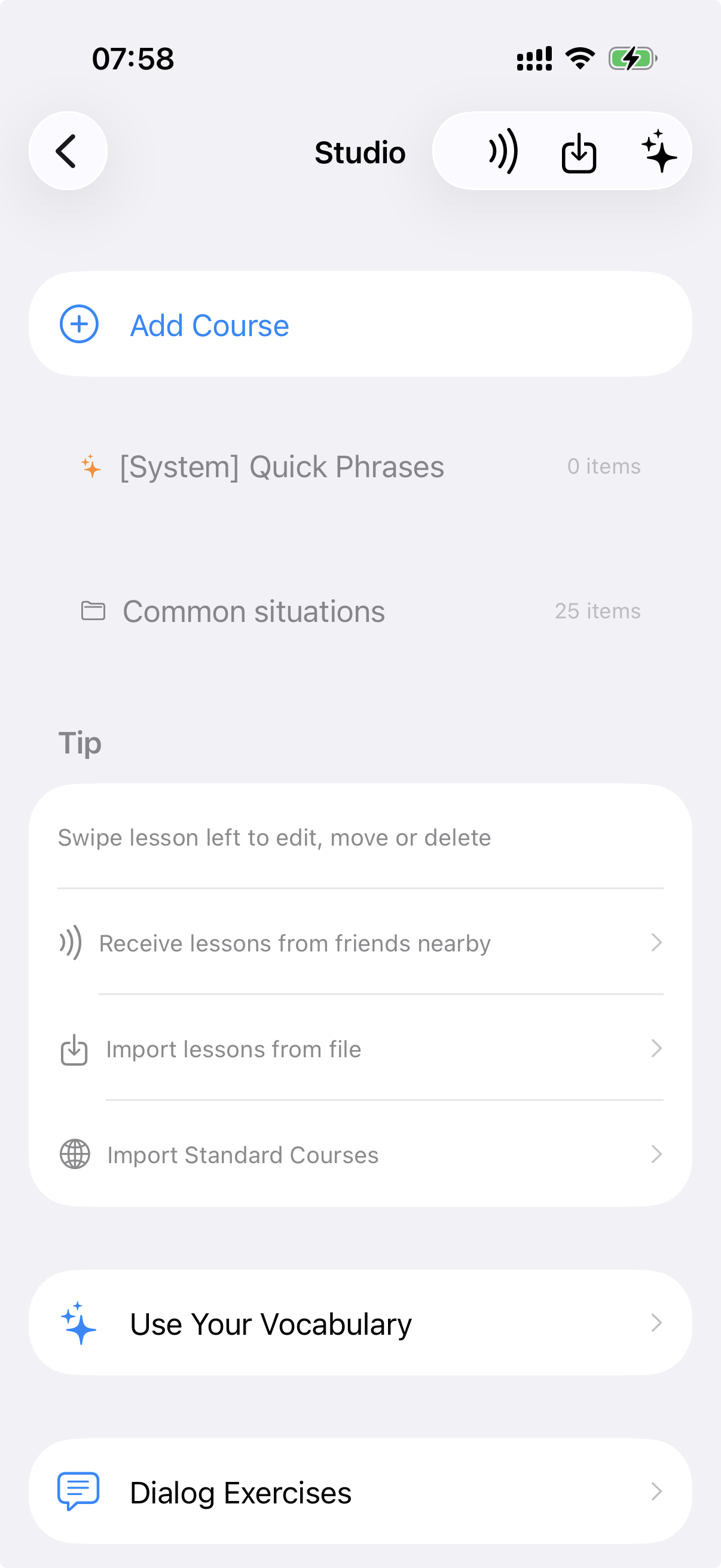
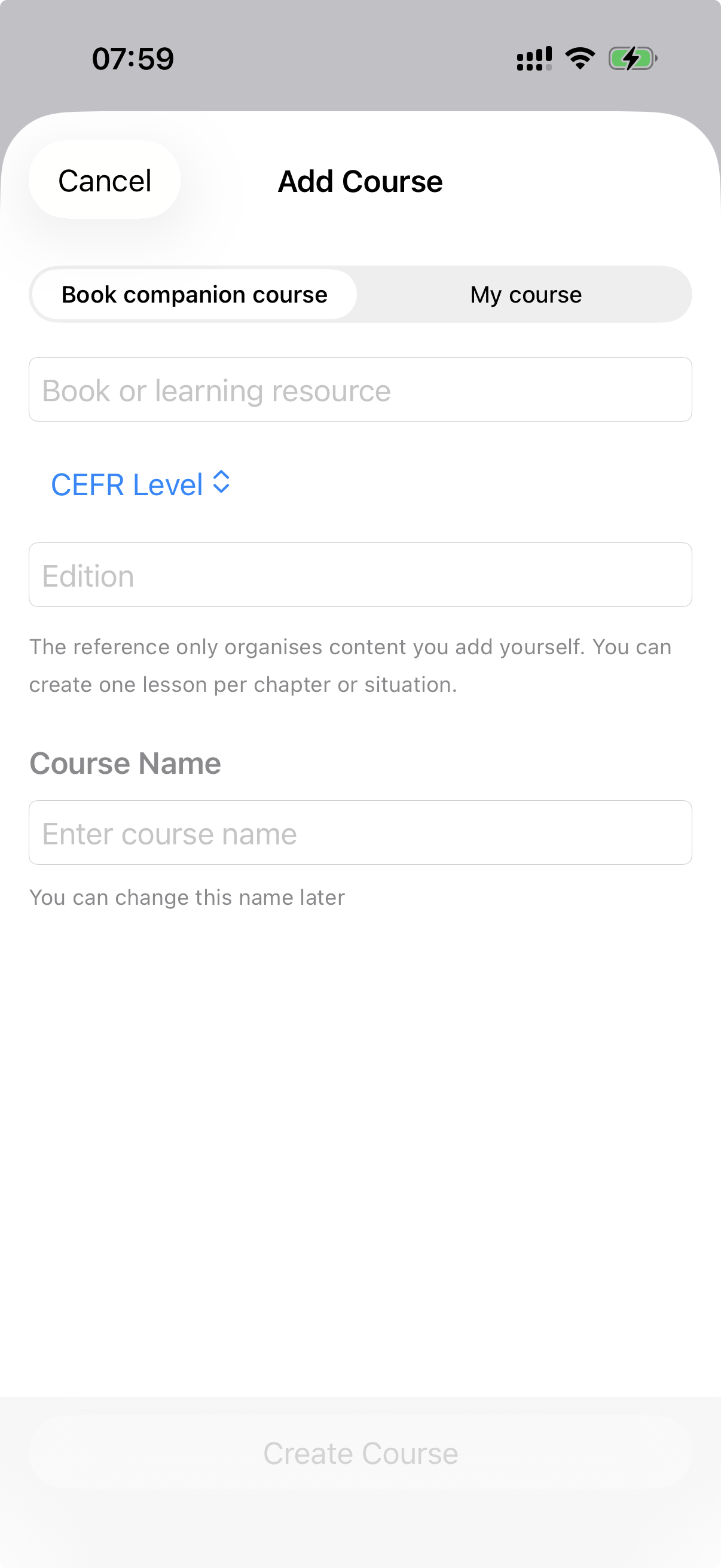
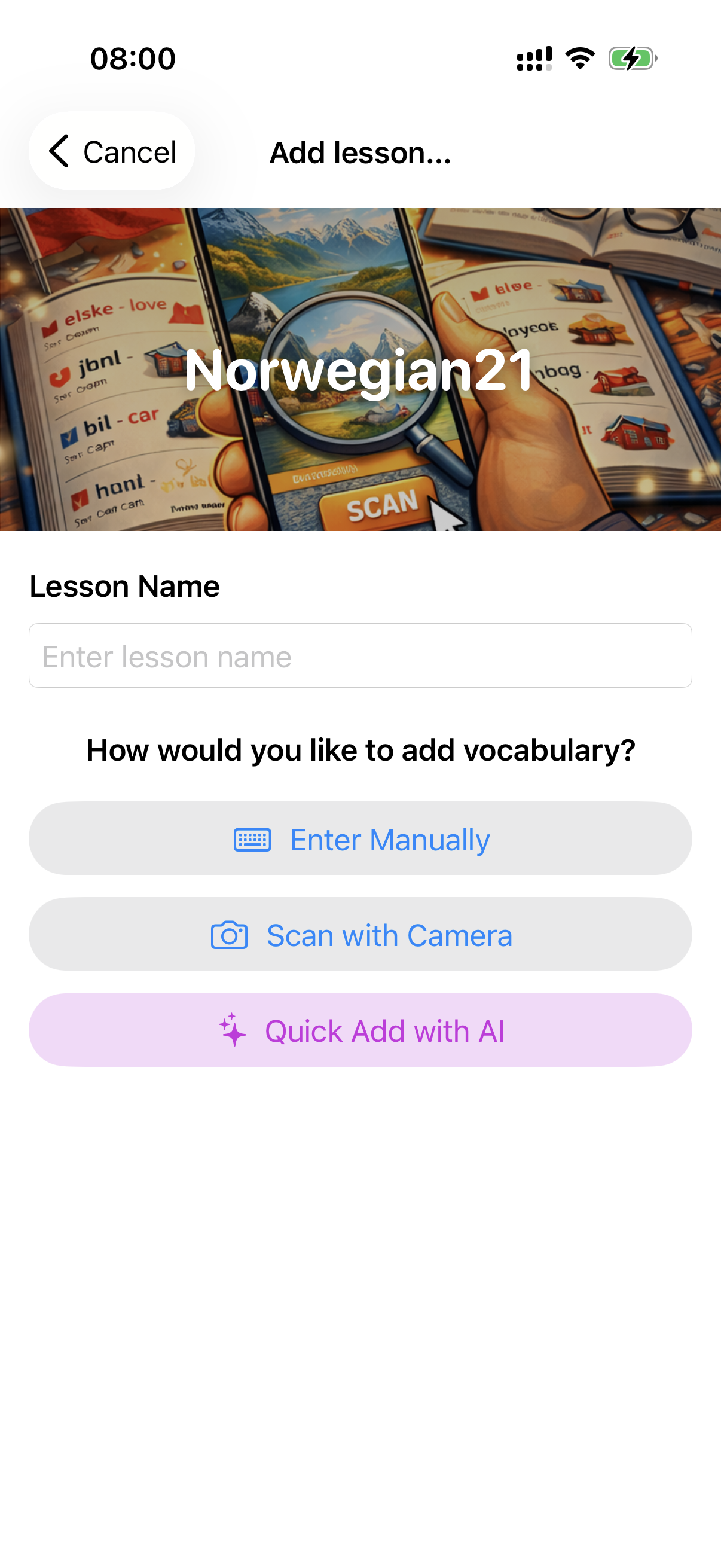
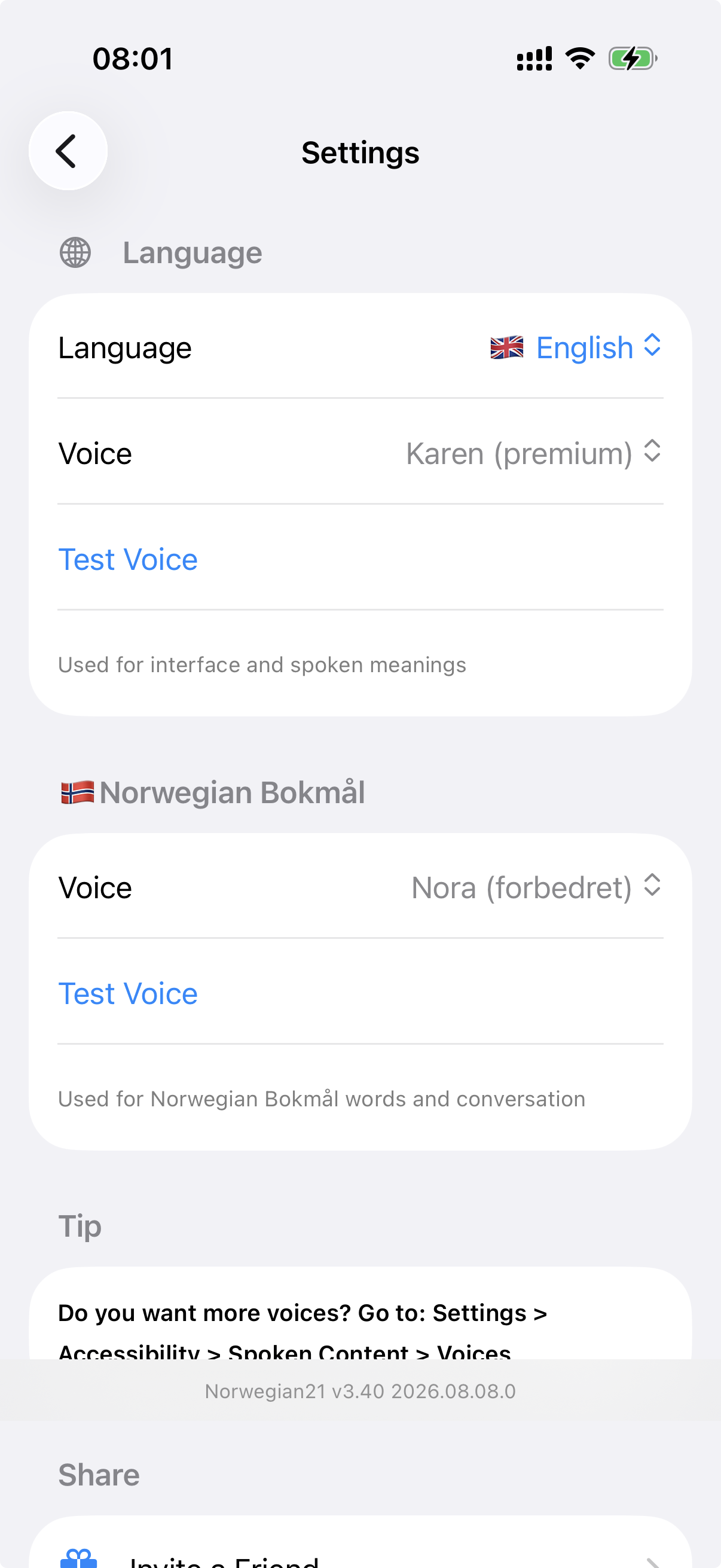
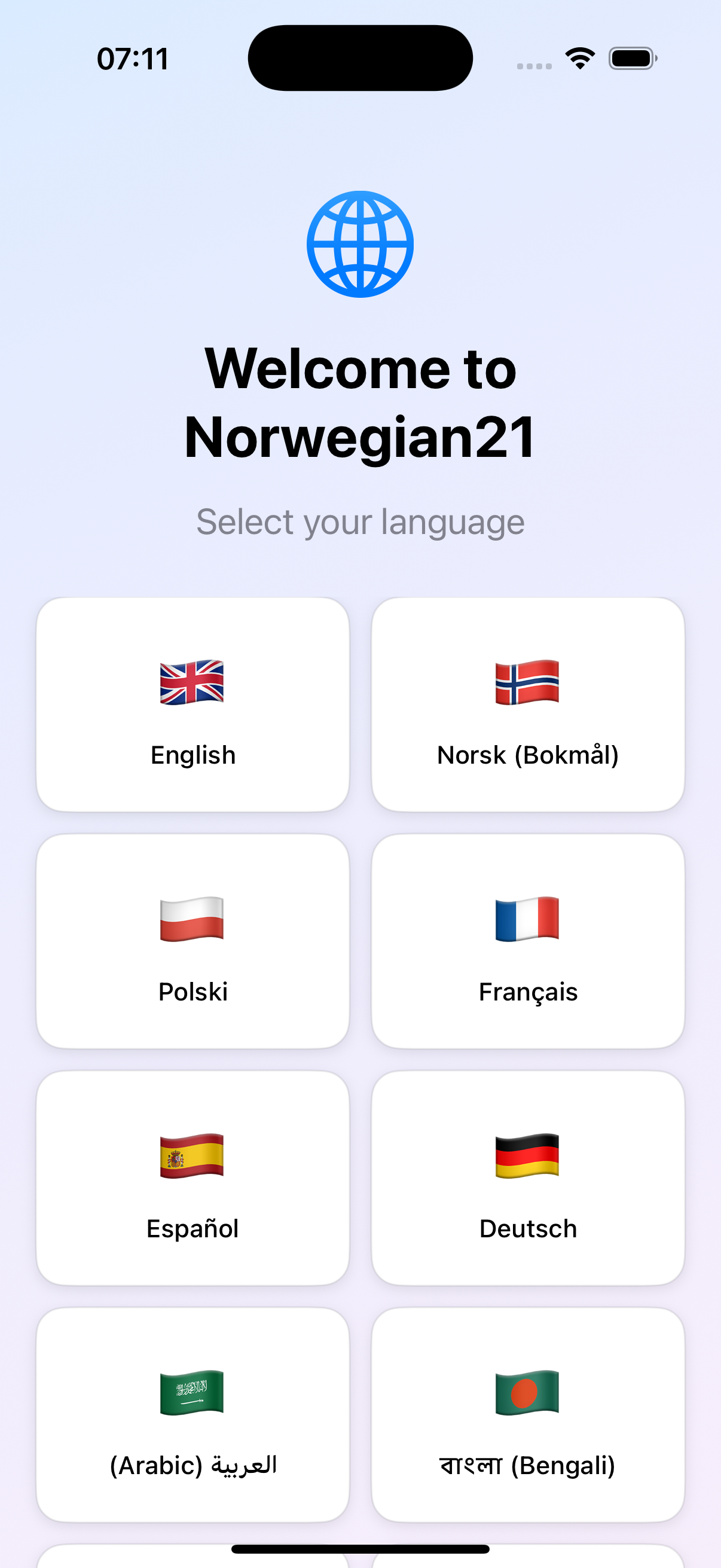
Figure 1 – First launch or language selection
Document revision: 1.0
Applies to app version: 3.40
Date: 9 August 2026
Norwegian21 is an app for learning and practising Norwegian. You can work with complete CEFR courses from A1 to C2, short introductory courses, Norwegian21’s 21-Day Course, and courses you create or import yourself.
Each lesson contains a focused collection of phrases. You can practise the same phrases in several ways:
You can operate the app by tapping the screen or enable Hands-Free and use your voice.
On first launch, the app may request access to the microphone and speech recognition. These permissions are required for spoken exercises and Hands-Free. Camera and photo access are only used when you choose features that capture words or content from images.
Choose:
You can change these choices later in Settings.
Figure 1 – First launch or language selection
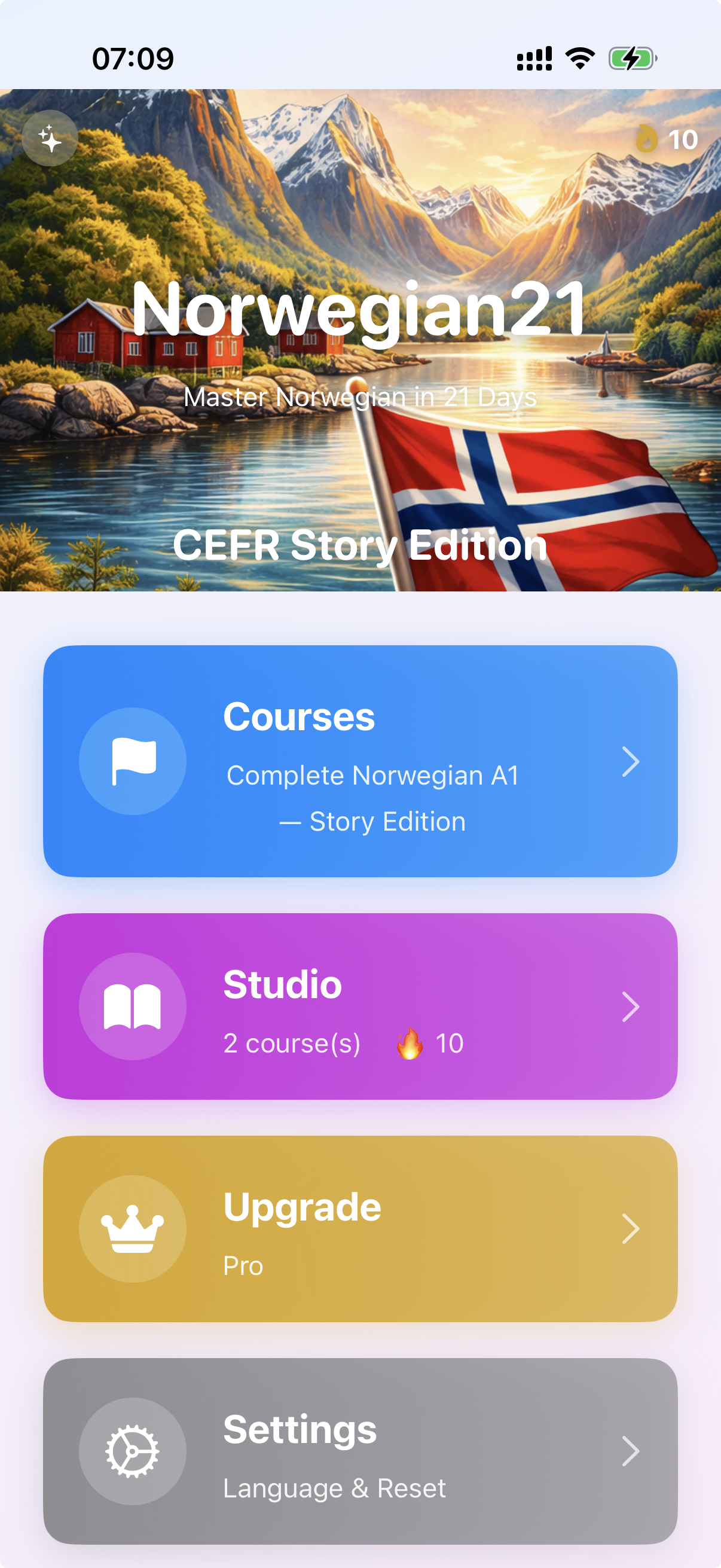
The main menu has four primary options:
| Option | Purpose |
|---|---|
| Courses | Opens the course list and Continue selection |
| Studio | Creates and manages your courses, lessons and other content |
| Upgrade | Shows Free/Pro access and purchase options |
| Settings | Languages, voices, speech recognition, Hands-Free, privacy and other choices |
The subtitle under Courses normally shows the selected or most recently used course. Tap a card to open it.
Figure 2 – Main menu
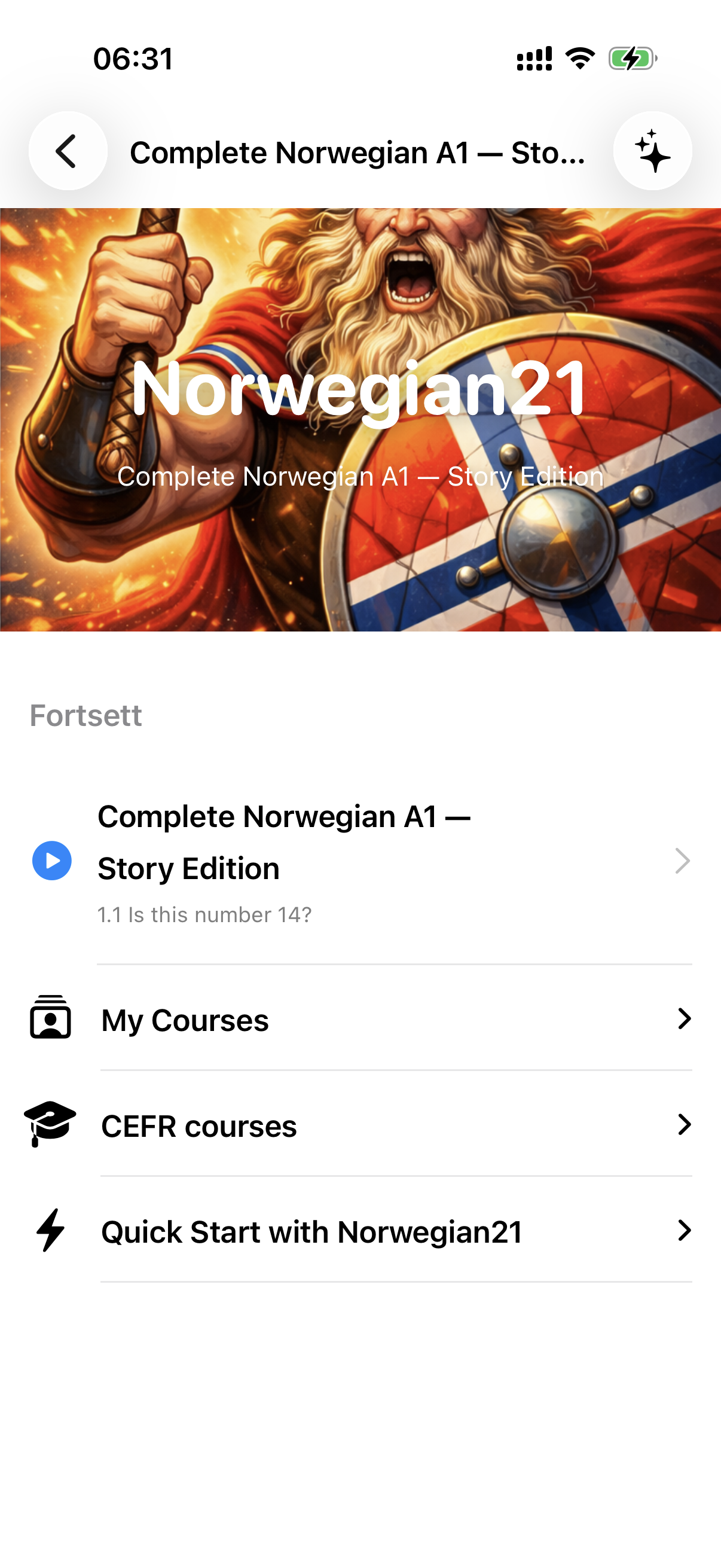
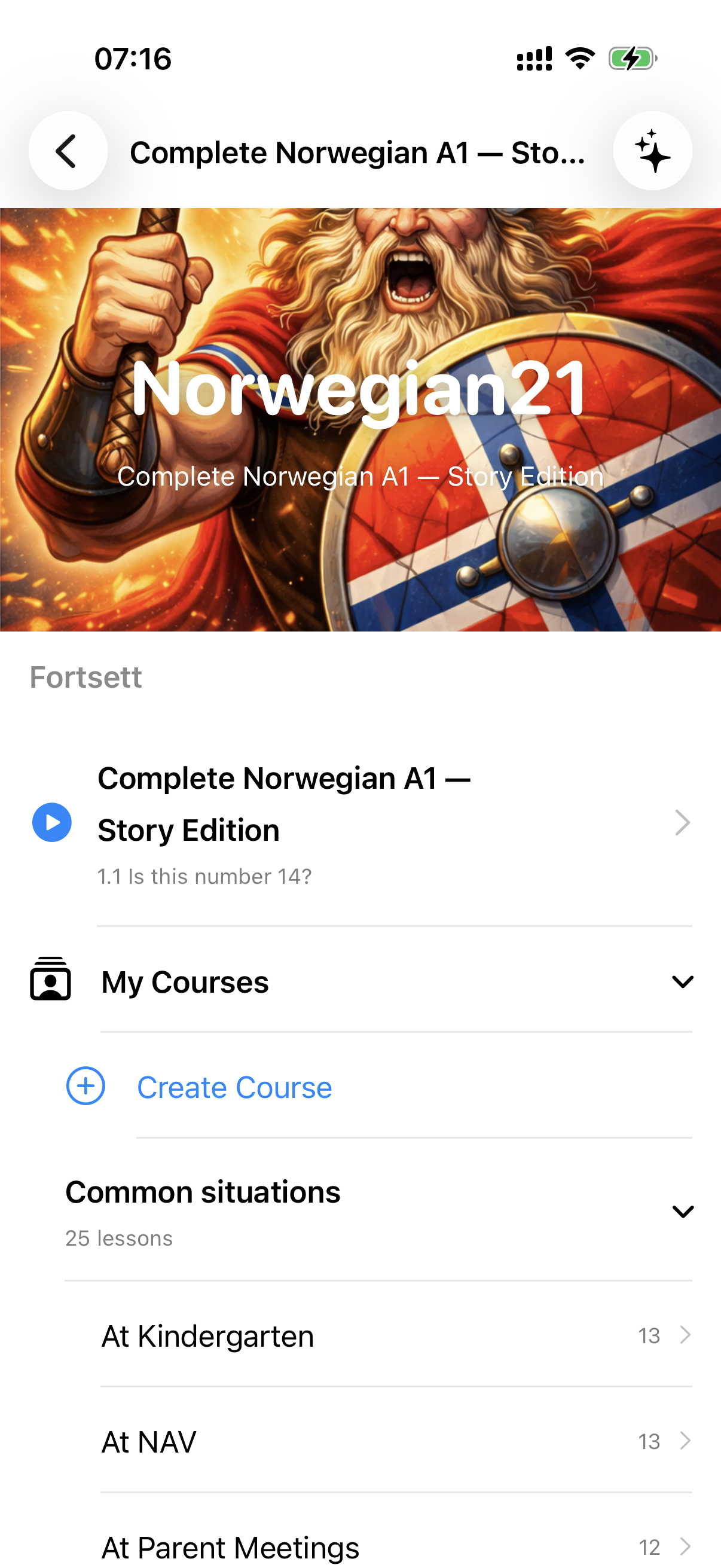
The course list is organised into groups that can be collapsed and expanded.
Shows your most recent course location. Tap the row to return directly to the lesson. For CEFR courses, the level, chapter number, lesson number and title are shown.
Contains courses you have created, imported or received. Expand the group and then a course to see its lessons. Create Course opens the appropriate part of Studio.
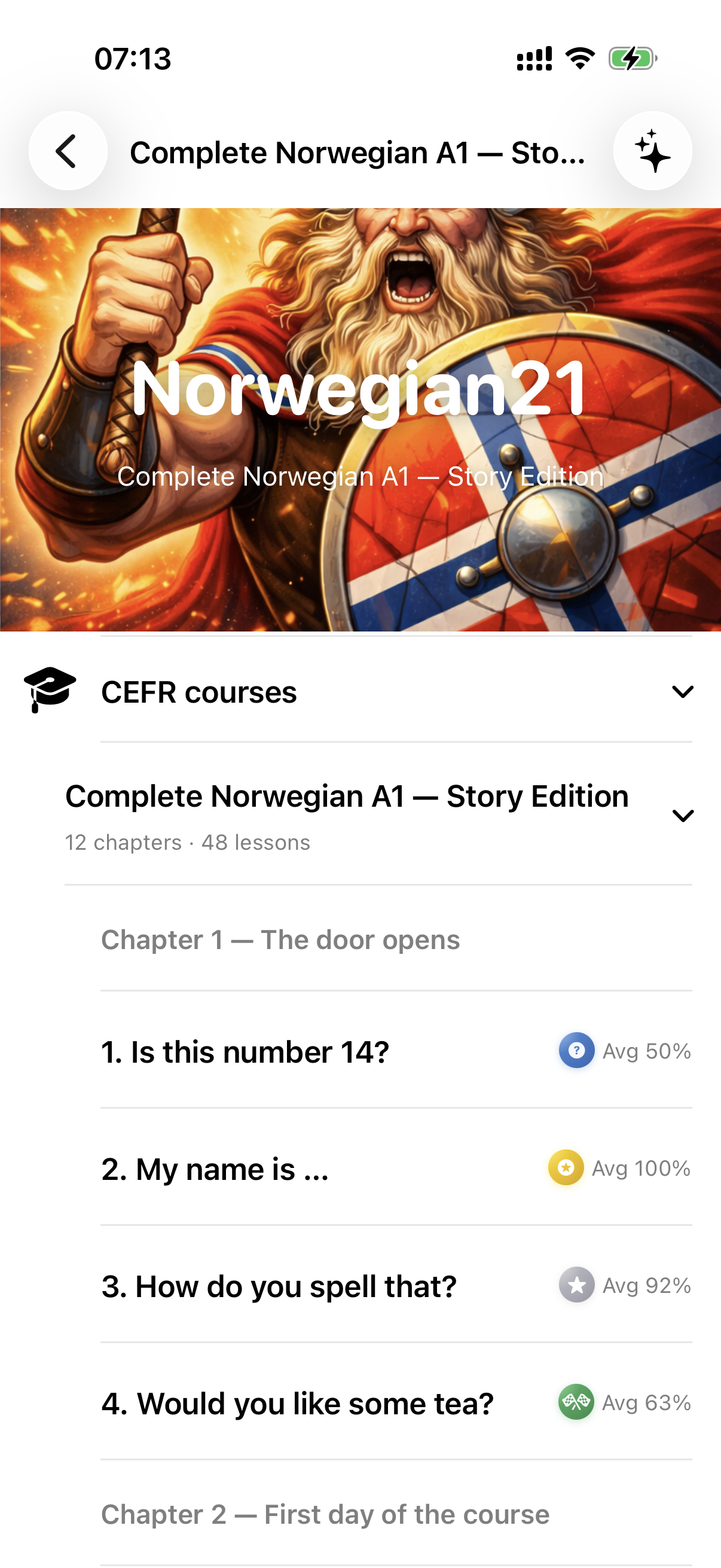
Contains Complete Norwegian A1, A2, B1, B2, C1 and C2. Each course is divided into chapters. Expand a course and chapter, then tap a lesson.
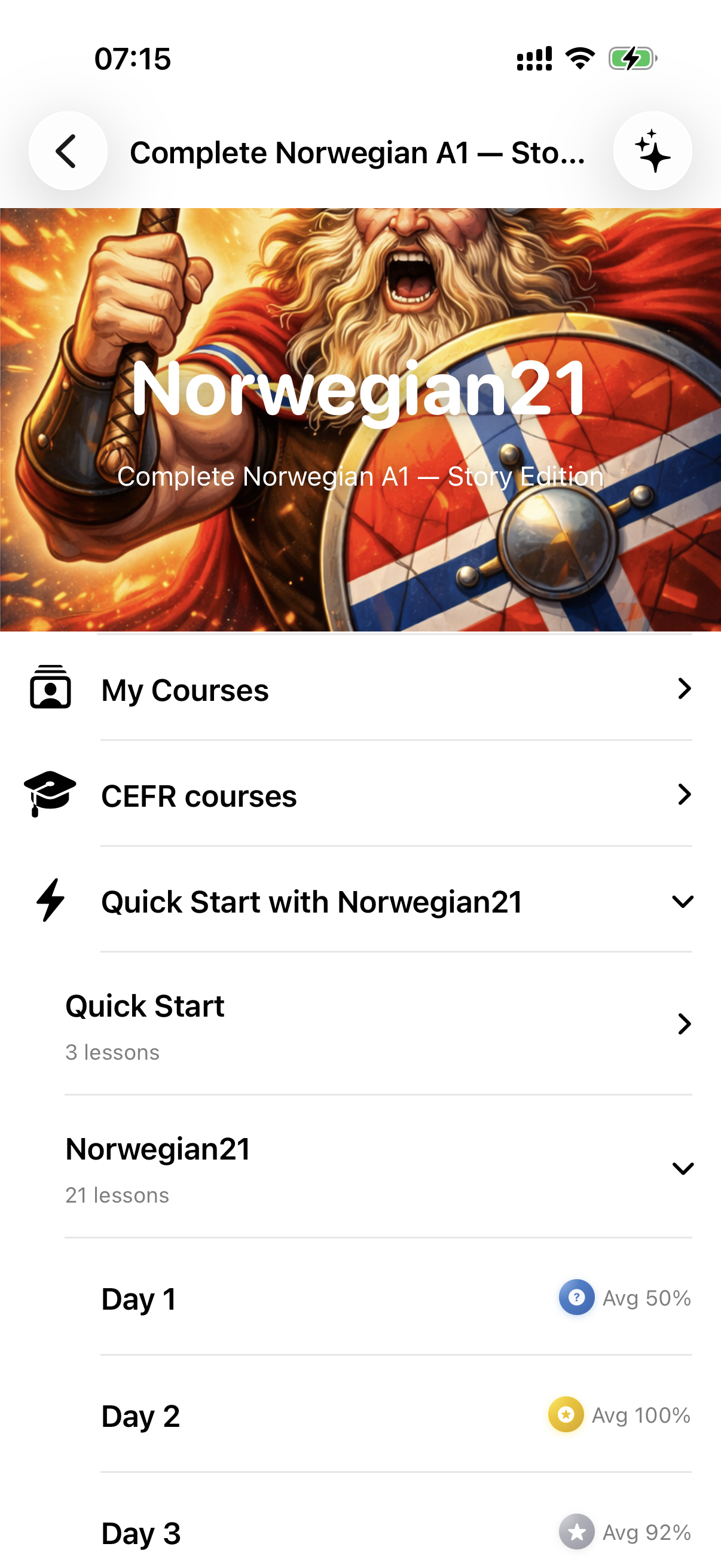
Contains:
A locked lesson requires Pro. Tap it to see the upgrade option.
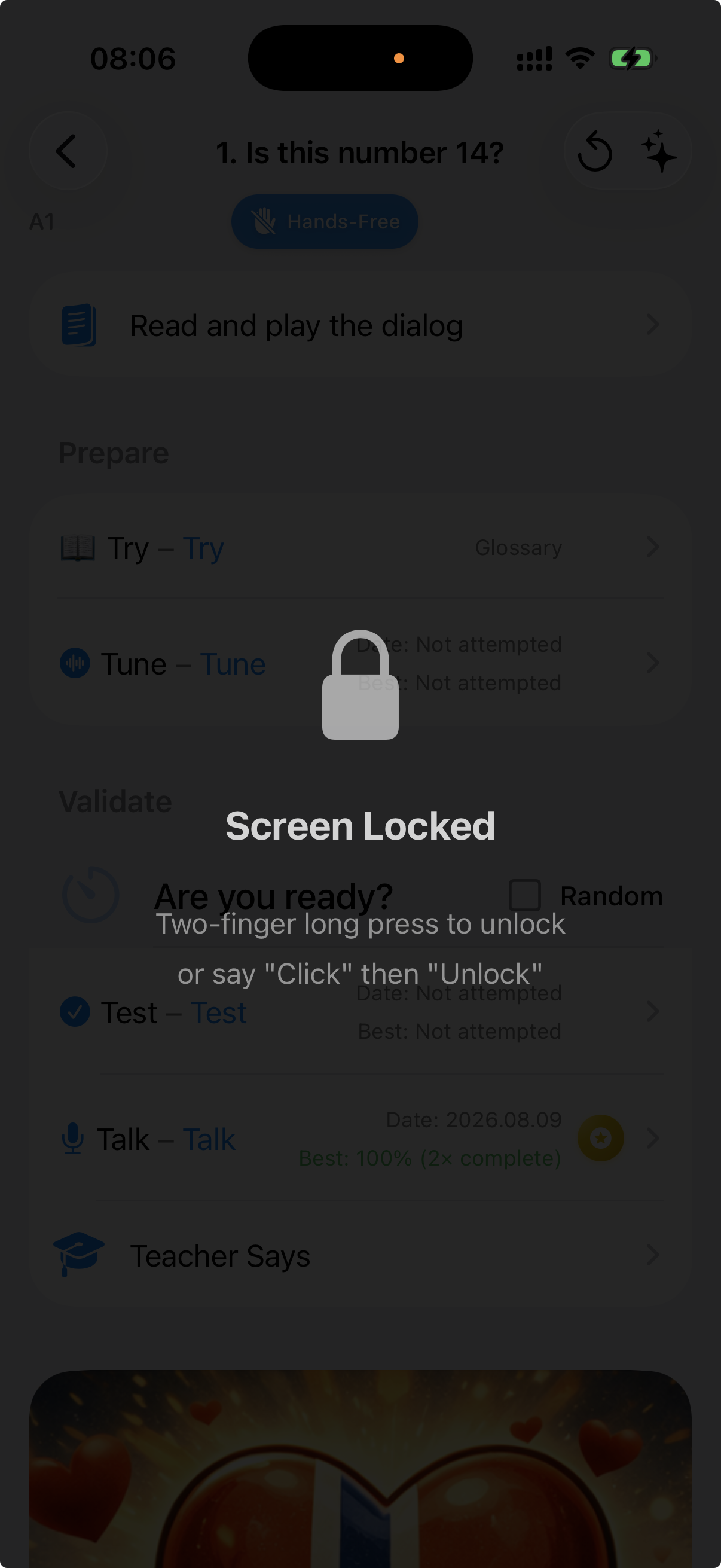
Figure 3 – Course list overview
Figure 4 – Expanded CEFR course
Figure 5 – Quick Start and Norwegian21
Figure 6 – My Courses
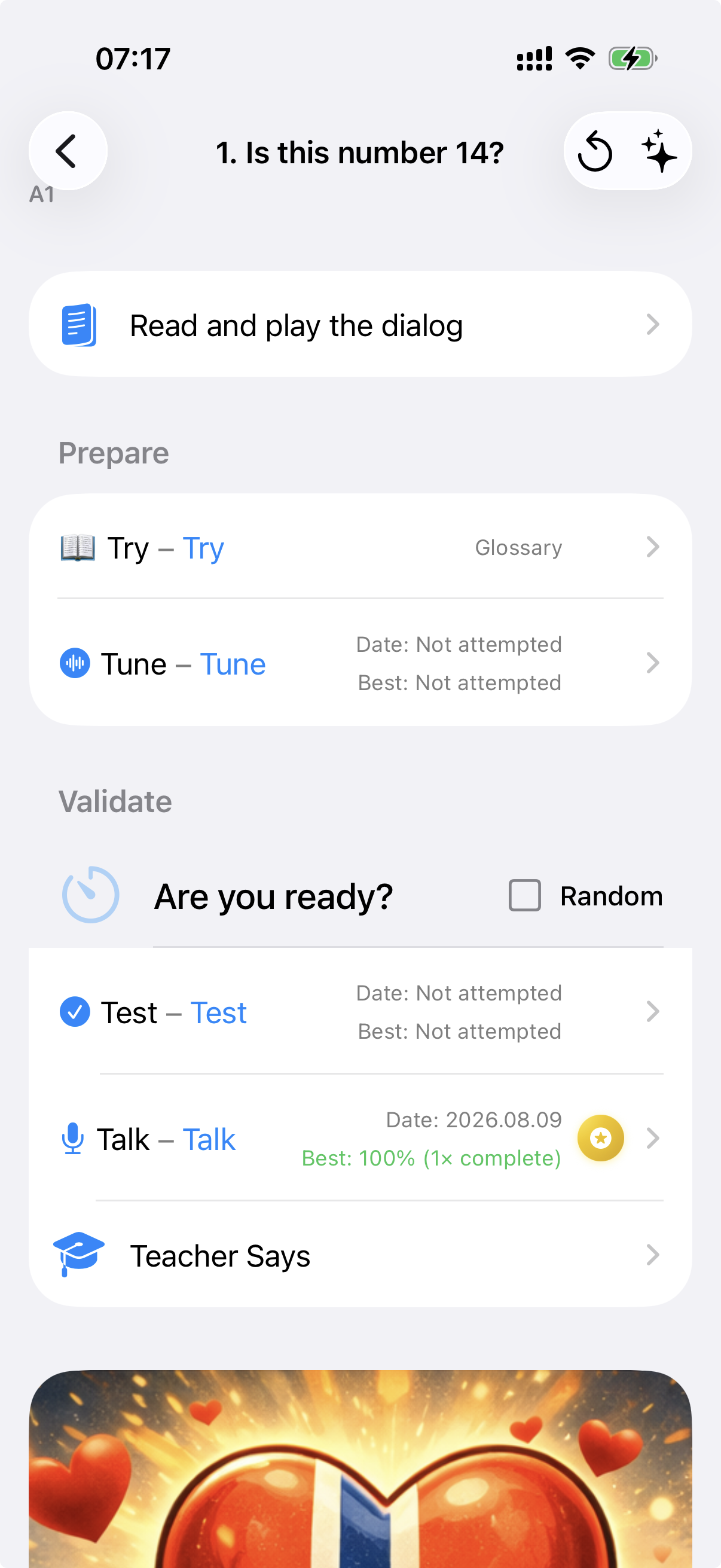
The lesson overview shows the lesson title and available activities. CEFR lessons show the level on the left, while the heading identifies the chapter and lesson.
If the lesson has a story, dialogue or concept explanation, a separate row appears at the top. The exercises follow below.
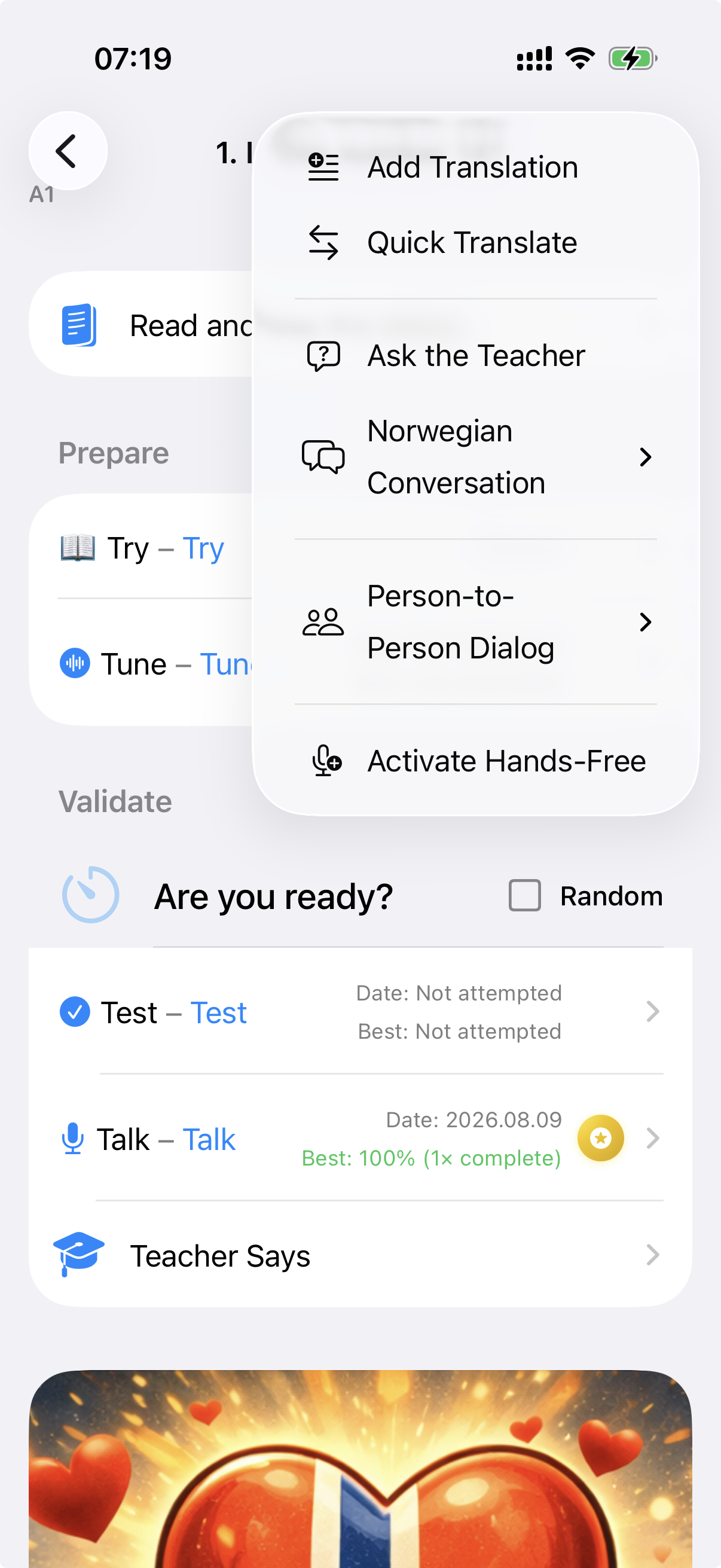
Depending on the exercise, you can choose random order, accent requirements or keyboard input. The menu in the upper-right corner may contain additional lesson tools and settings.
| Option | Purpose |
|---|---|
| Add Translation | Adds a translation/phrase to the scratch area |
| Quick Translate | Translates between Norwegian and the selected UI/support language |
| Ask the Teacher | Opens the AI-based language assistant |
| Conversation | Starts a target-language conversation |
| Repeat After Me | Practises repetition after a model |
| Person Dialog – Side by Side | Two-person dialogue layout side by side |
| Person Dialog – Vis-à-vis | Dialogue layout for people facing each other |
| Radio | Opens Radio when available with your access level |
| Activate/Deactivate Hands-Free | Enables or disables Hands-Free |
When Hands-Free is active, some tap-based tools are hidden to keep the voice-controlled flow clear. AI-based options may require internet access, API access and available AI Lookups.
Figure 7 – CEFR lesson overview
Figure 8 – Lesson menu
Try is the calmest way to meet the phrases. You can move between phrases, play Norwegian audio, show or hear the meaning, spell the complete phrase or one word, and adjust speech speed.
In Hands-Free Try, commands are active directly; you normally do not need to say “OK” before each command.
Figure 9 – Try
Tune practises listening and spoken reproduction. The app reads a phrase and you repeat it. Speech recognition compares what it heard with the target phrase. You can request another reading, a hint, the meaning, or a different speed.
A correct match means speech recognition considered the answer sufficiently similar to the target phrase. It is not a complete pronunciation assessment.
Read Intro can be enabled or disabled in the exercise menu. When disabled, the app skips the introduction and starts the first actual task directly.
Figure 10 – Tune
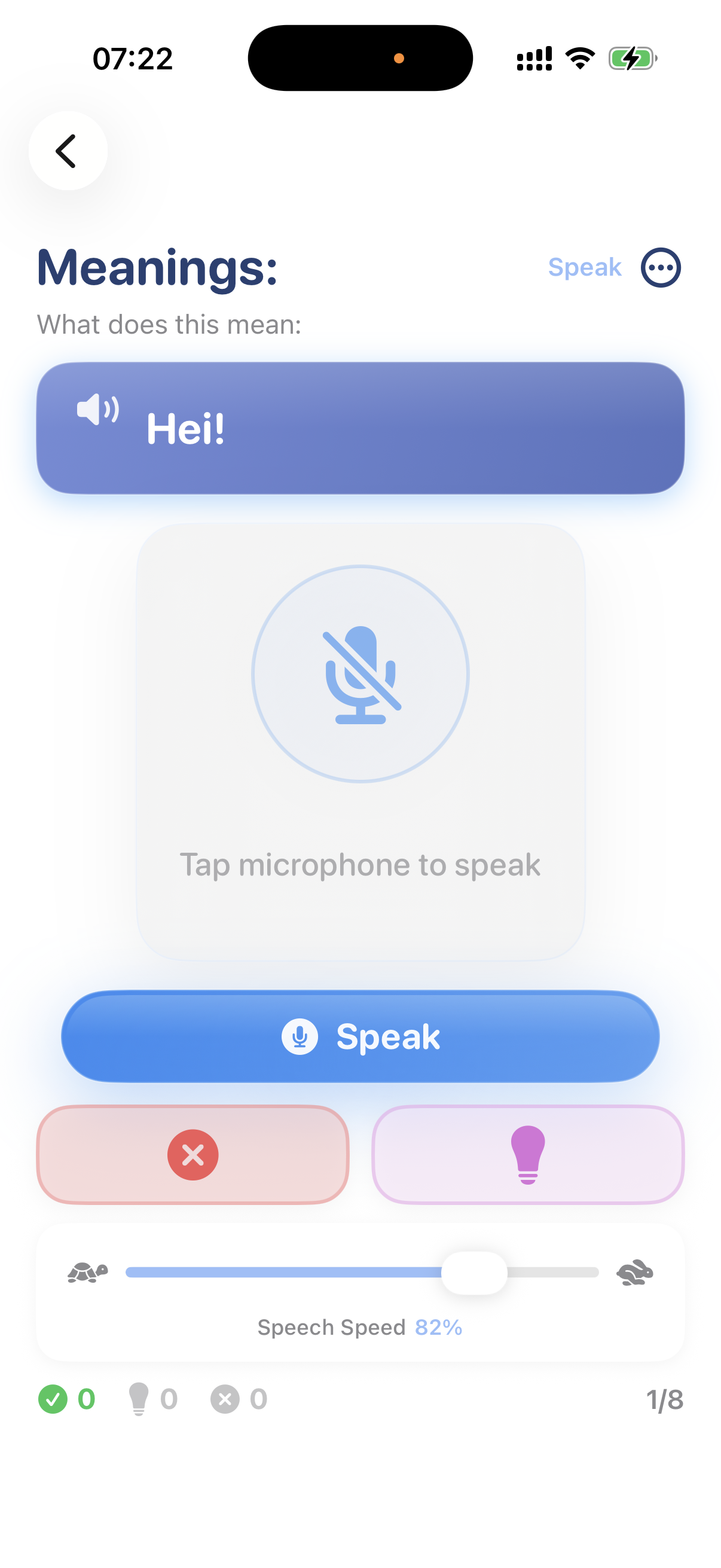
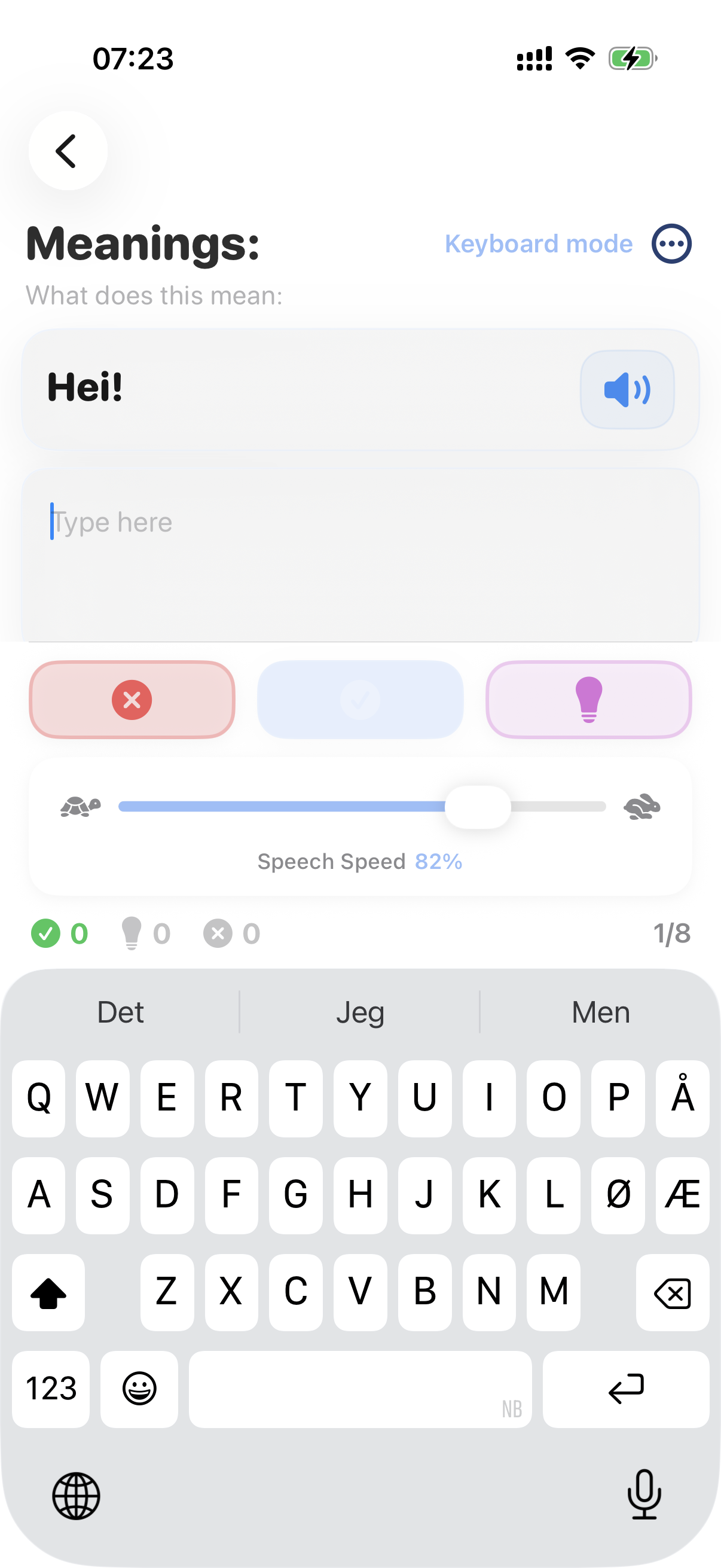
Test checks your understanding of Norwegian phrases. A task may ask you to say the meaning in the UI/support language, write the answer, or select an option.
In writing mode, punctuation may be omitted when the content otherwise matches. Speech tasks use the recognition language appropriate for the expected answer. Read Intro is available in the exercise menu.
Figure 11 – Test with a spoken answer
Figure 12 – Test with multiple choice or writing
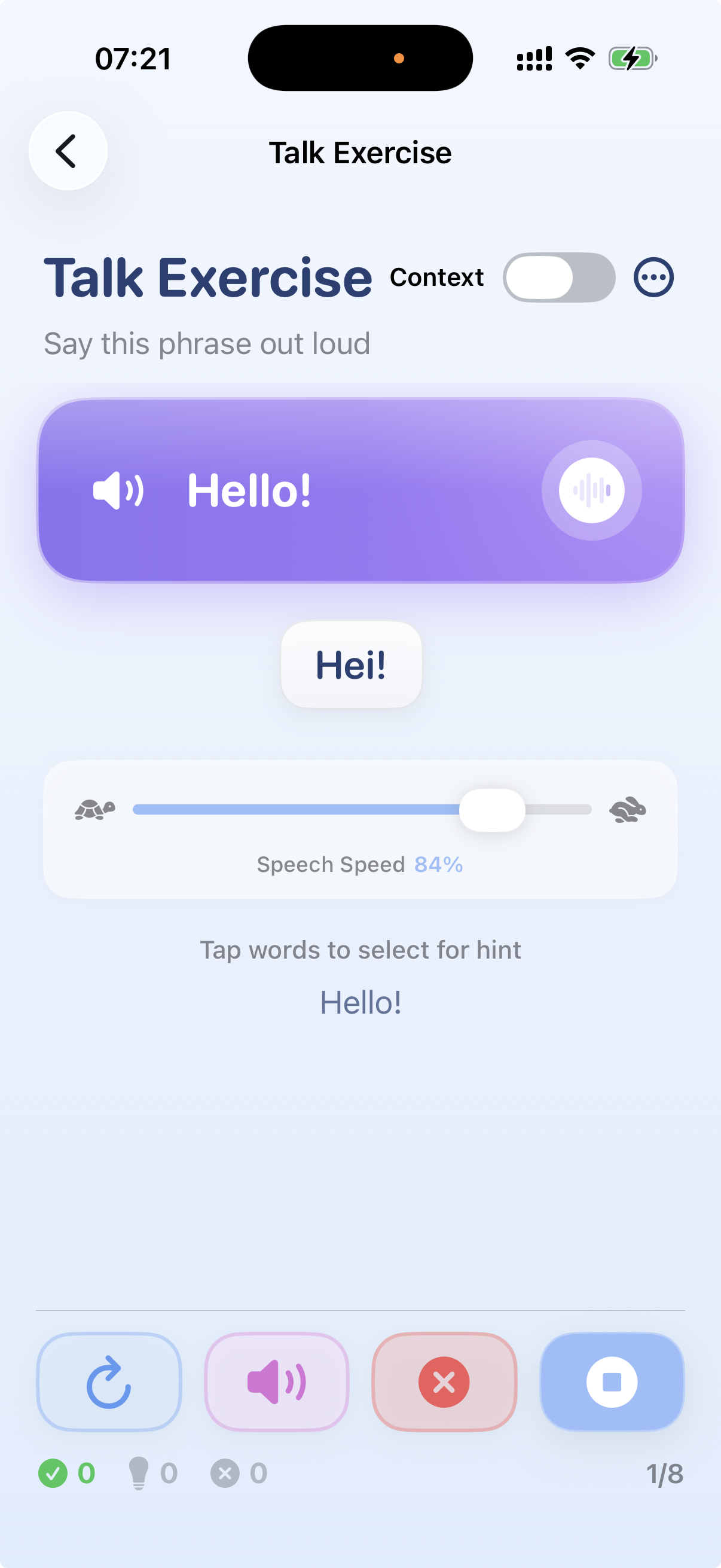
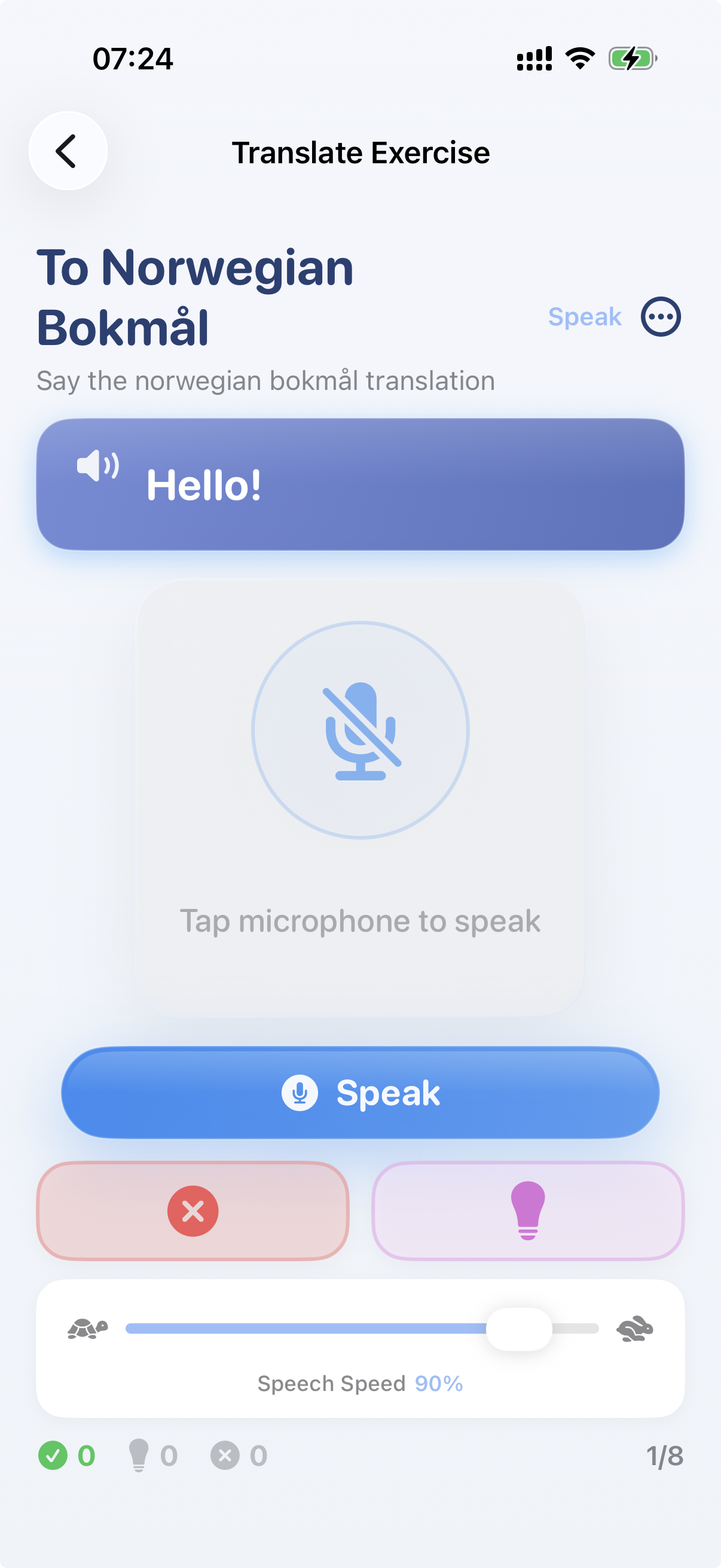
Talk shows the meaning in the UI/support language, and you produce the Norwegian target phrase. This is the primary mode for independent Norwegian production.
If Apple speech recognition does not match, the optional Speech Recognition AI Backup can attempt another transcription. It must verify that the user spoke the expected language rather than approving a translation spoken in another language. Read Intro is available in the exercise menu.
Figure 13 – Talk
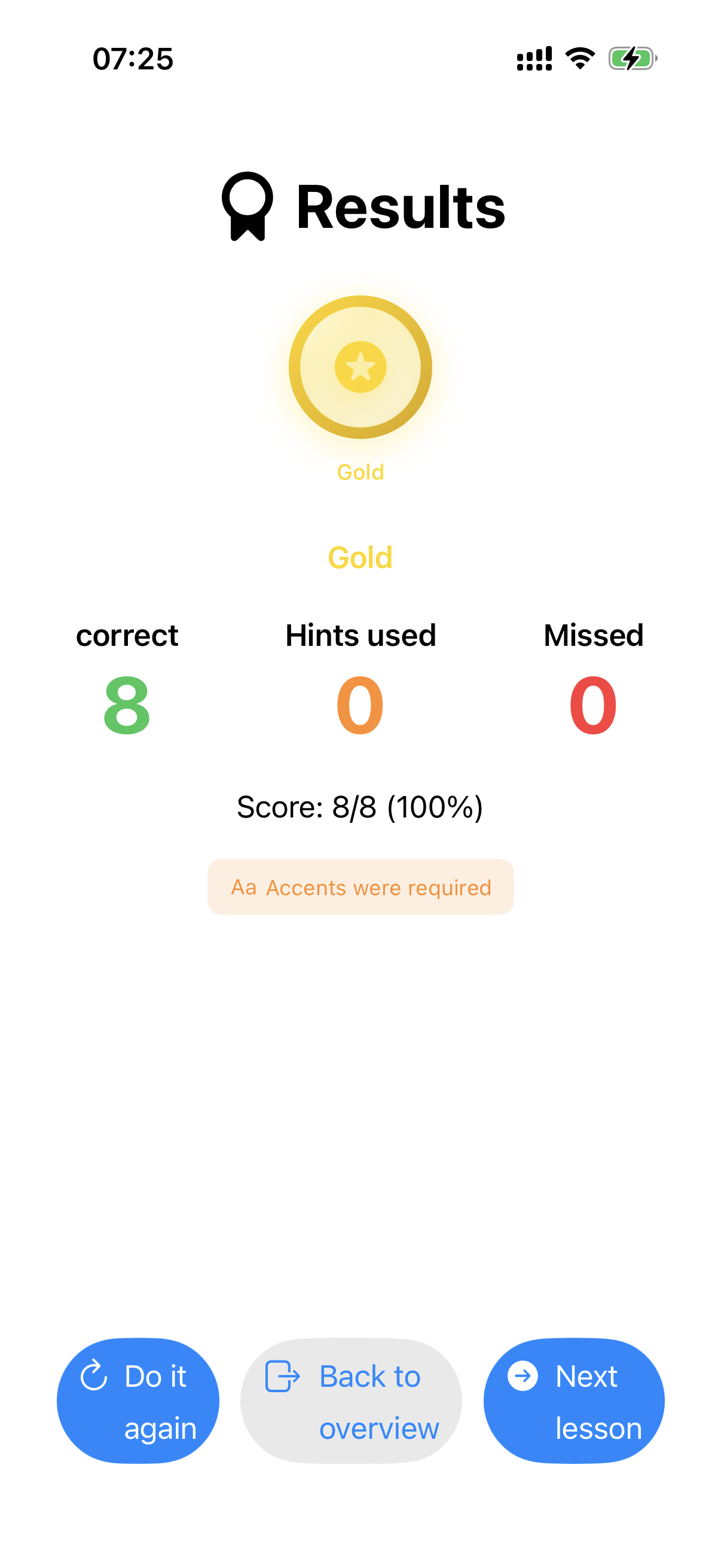
After Tune, Test or Talk, the results view lets you review the result, repeat the exercise, return to the lesson overview, or open the next lesson. If no next lesson exists, the app informs you that you are at the final lesson.
Figure 14 – Results
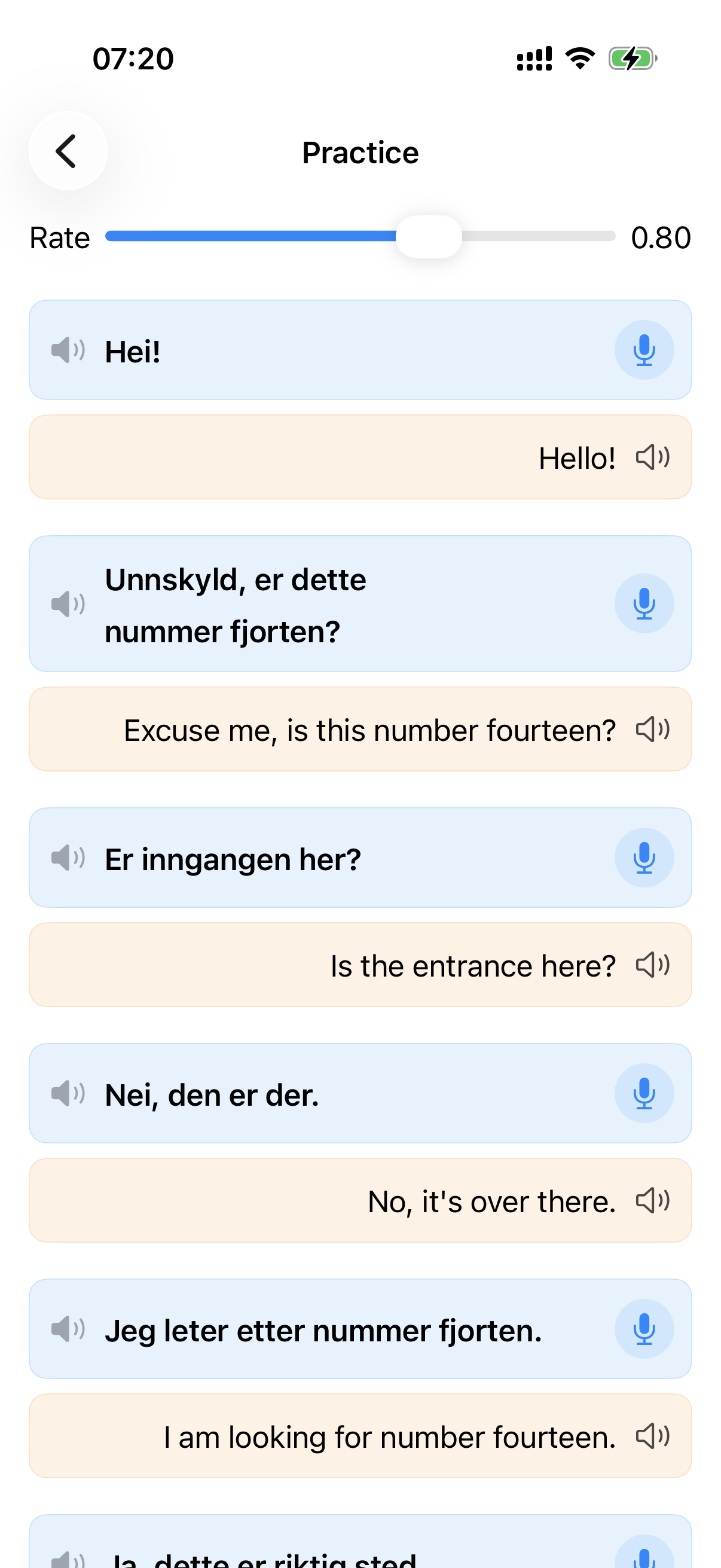
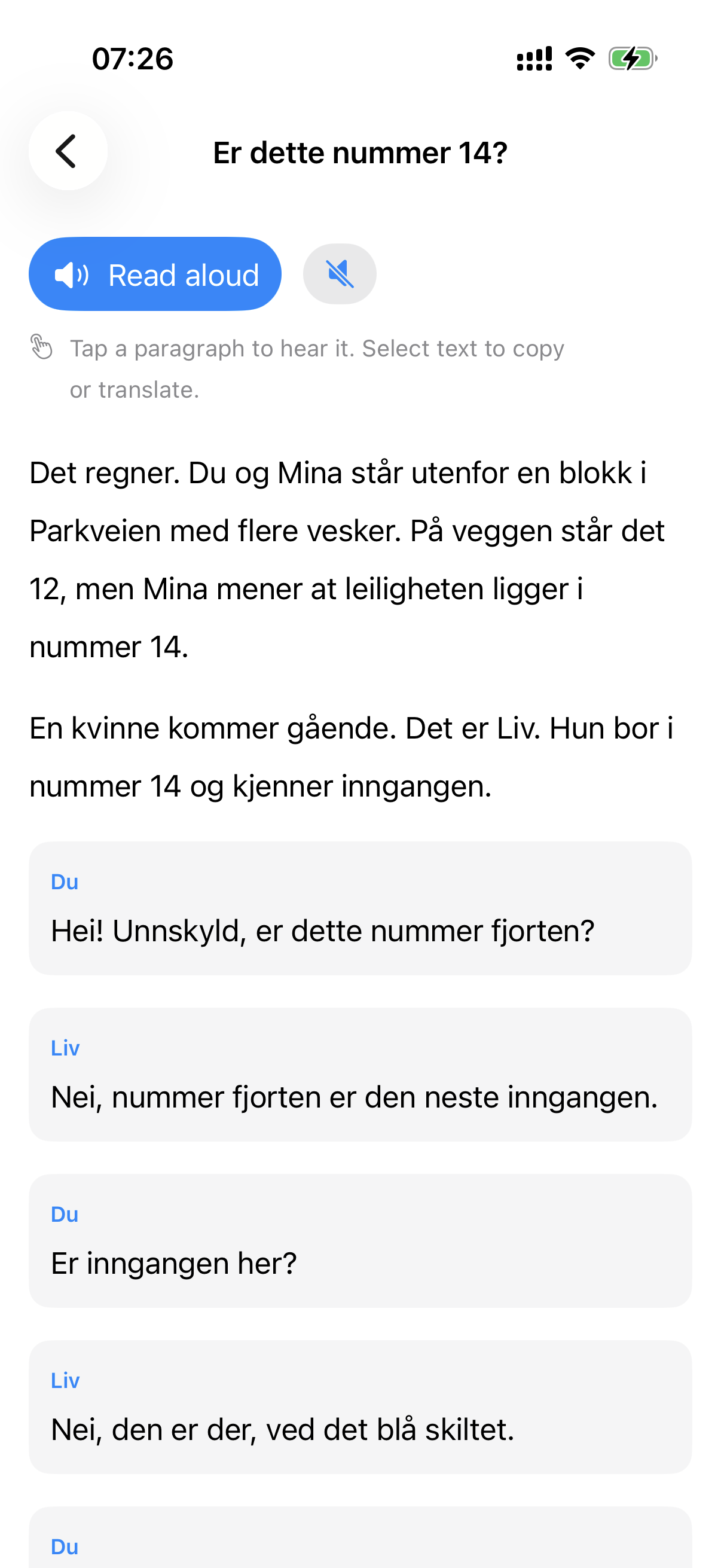
CEFR courses can contain reading texts, concept explanations, dialogues, questions and comprehension checks. Available content varies by level and lesson.
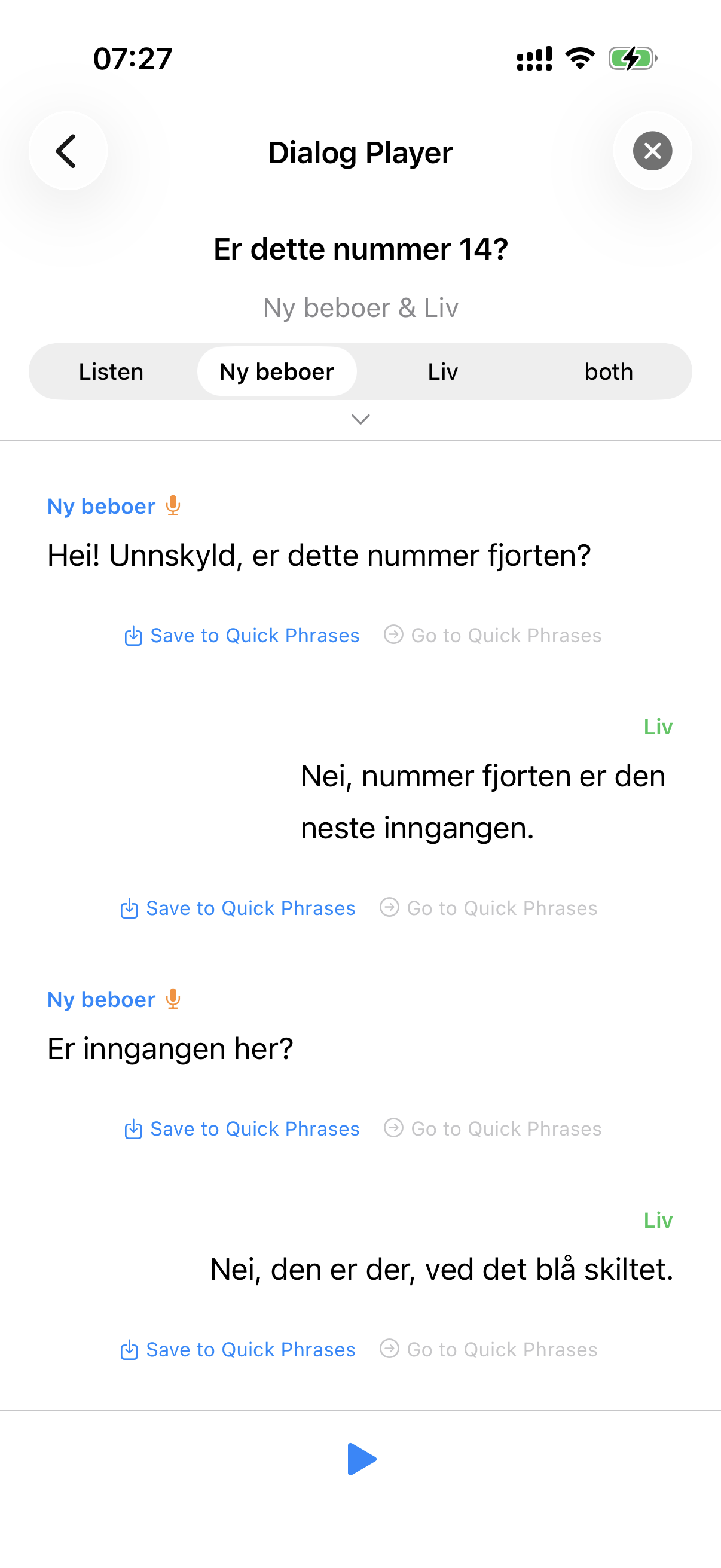
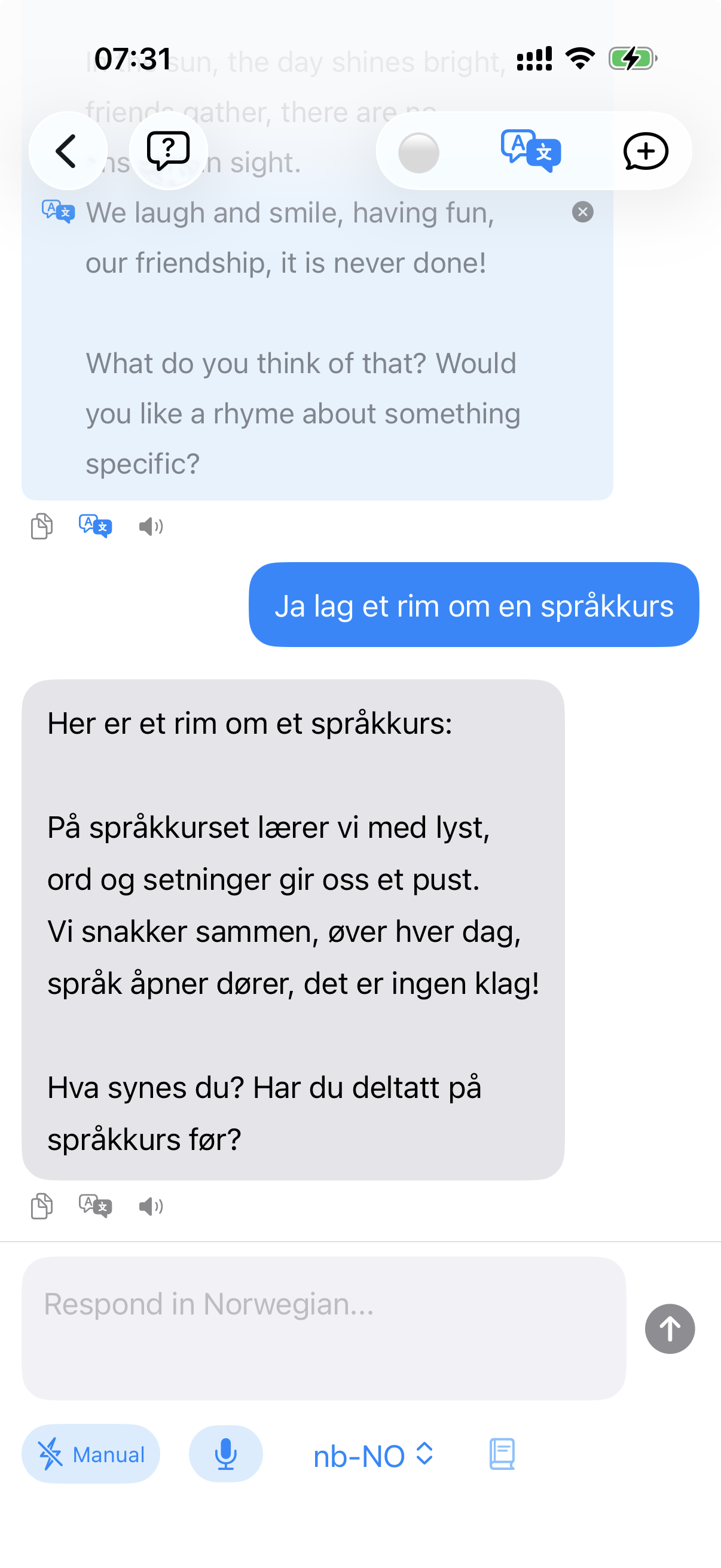
The Dialogue Player lets you listen to the speakers and follow the conversation. AI Chat and Ask the Teacher are optional online features that may require available AI Lookups. Regular lessons, stories, dialogues and phrase exercises can be used without an AI conversation.
Figure 15 – Story or concept explanation
Figure 16 – Dialogue Player
Figure 17 – Ask the Teacher or AI Chat
Studio is used to create and manage personal content.
Studio can also edit, move and delete lessons, add translations and manage courses. To edit, move or delete a lesson, display it in Studio and swipe the lesson row to the left. You are responsible for ensuring that personal or imported content may be used lawfully.
When Studio was opened from an empty course row in the Course list, Done or Cancel returns to where you came from.
Figure 18 – Studio
Figure 19 – Create course
Figure 20 – Add lesson
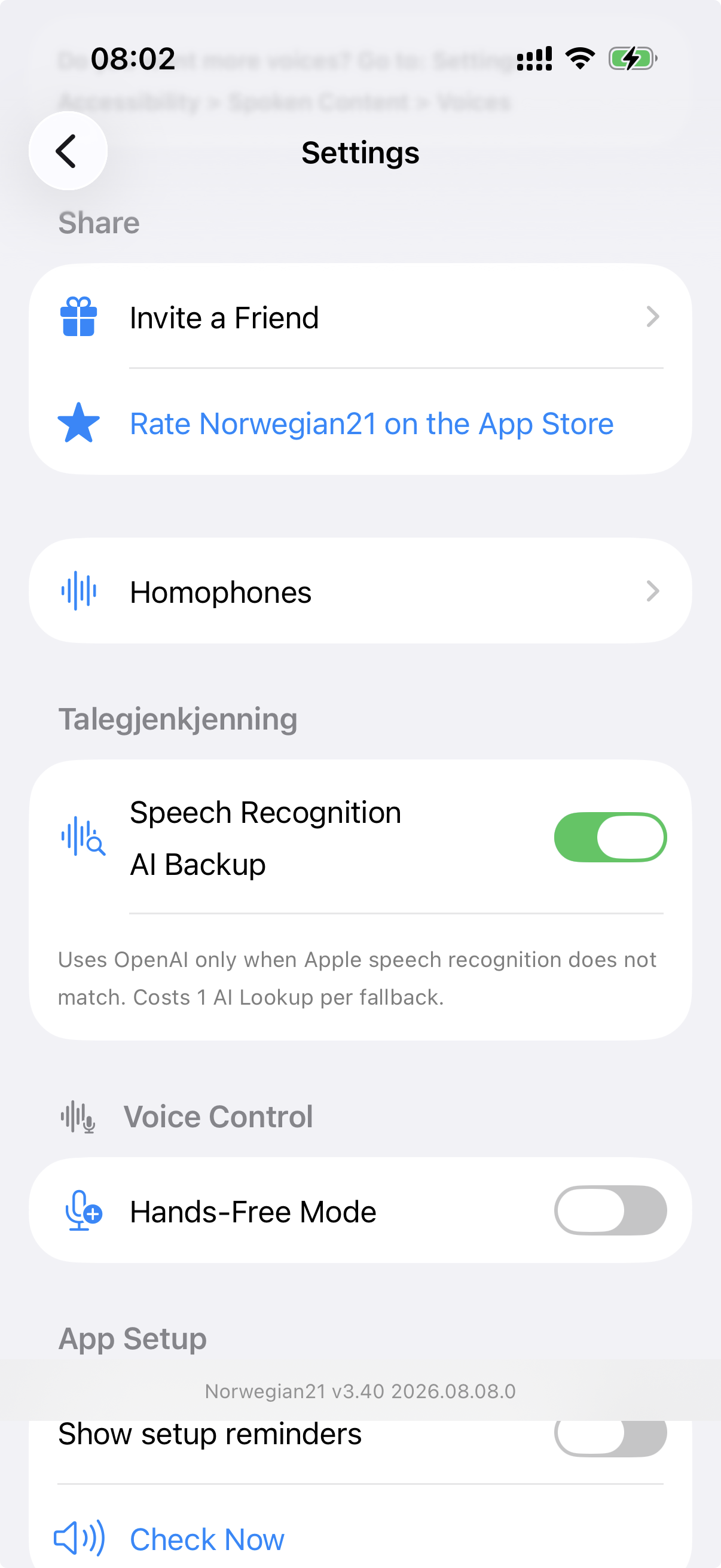
Important settings include UI/support language, Norwegian and support-language voices, speech recognition engine, Speech Recognition AI Backup, Hands-Free, command timeout, command feedback sounds, screen lock, usage statistics, API key and AI usage where relevant, resetting progress, Privacy Policy and Terms of Use.
Figure 21 – Languages and voices
Figure 22 – Speech recognition and AI Backup
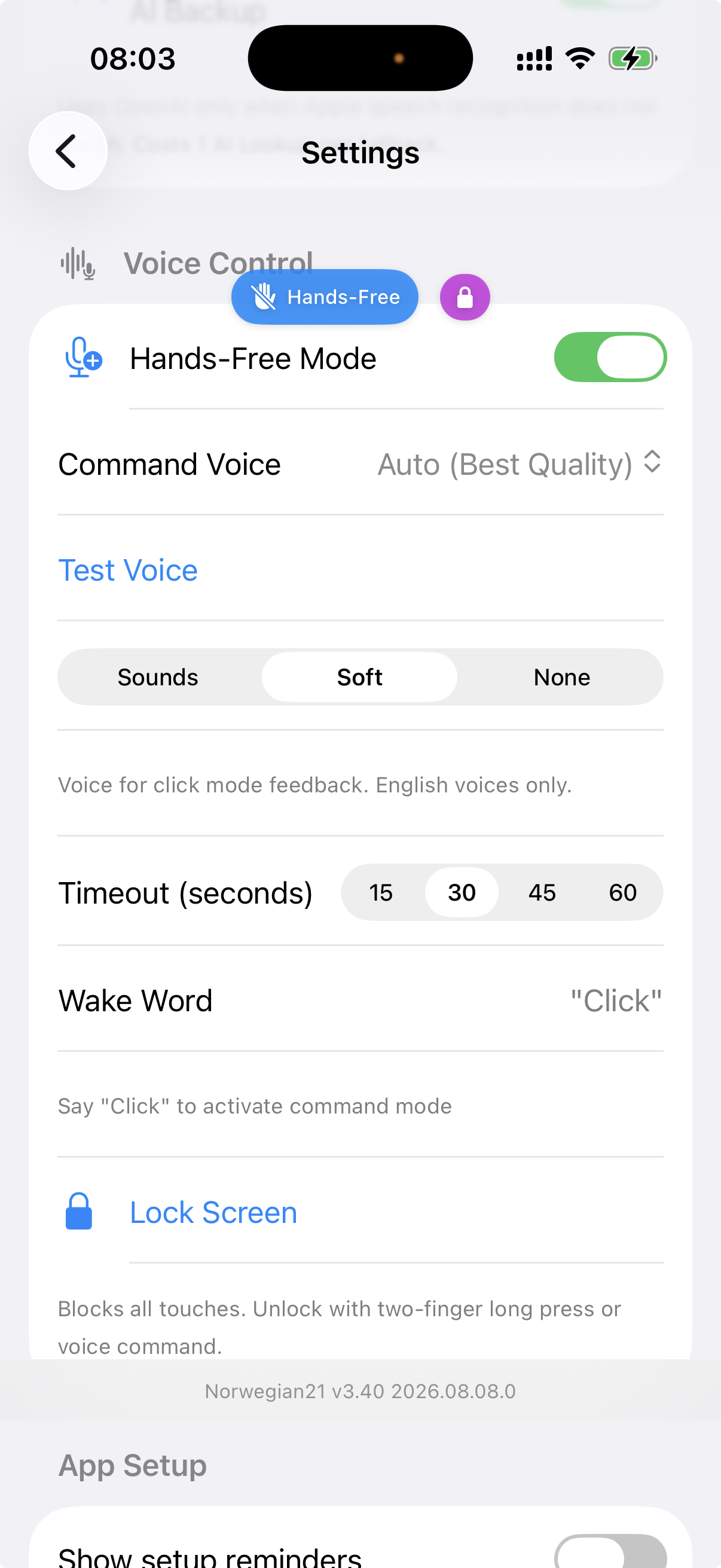
Figure 23 – Hands-Free settings
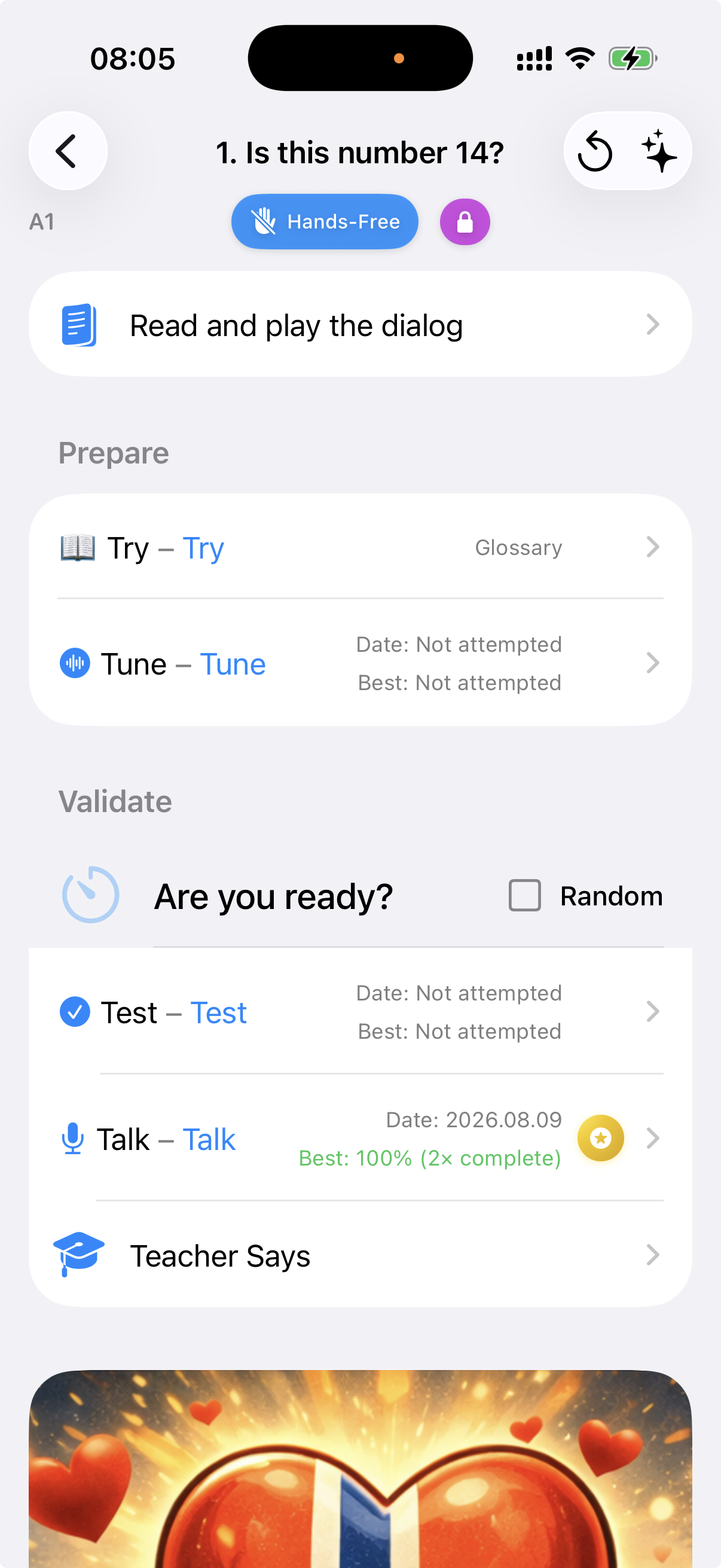
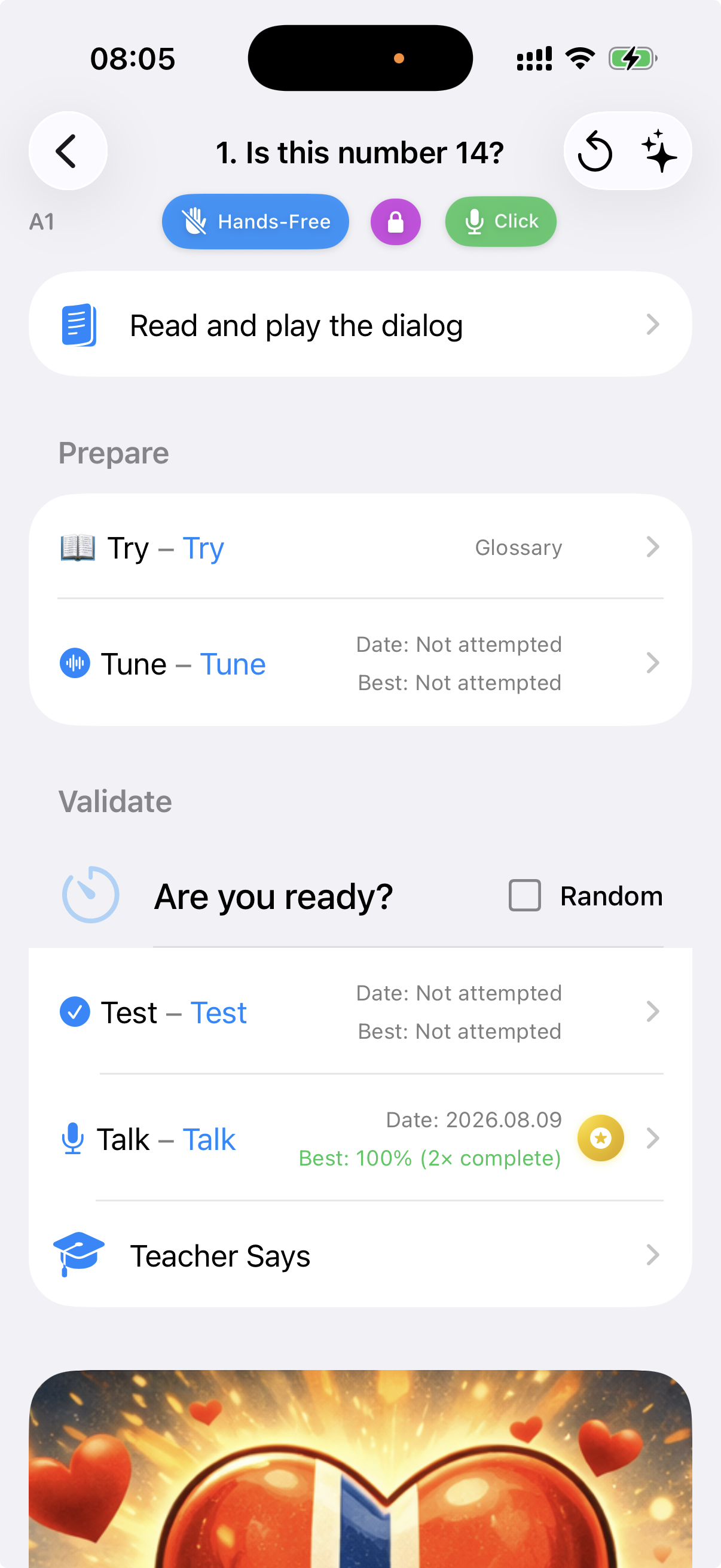
When Hands-Free is enabled, the app listens passively for the activation word. Say OK. The app plays a start sound and enters command mode. Then say one command. Say Exit to leave command mode. Command mode also ends after the selected timeout.
During an exercise, “OK” is treated as a command only when it does not conflict with the target phrase. If the target itself contains “OK” or “Okay”, the word can be used as an answer.
Say Menu or Help in command mode to hear the current screen and available commands.
Figure 24 – Passive Hands-Free
Figure 25 – Command mode
| Say | Result |
|---|---|
| OK | Enter command mode |
| Menu / Help | Read the current screen and available commands |
| Home | Go to the main menu |
| Back | Go back one level |
| Settings | Open Settings |
| Studio | Open Studio |
| Exit | Leave command mode |
| Stop | Stop current voice/command activity where supported |
| Repeat | Repeat the last spoken message where supported |
| Read menu | Read the menu for the current screen |
| Unlock | Unlock a Hands-Free locked screen |
| Say | Result |
|---|---|
| A1 through C2 | Select the complete CEFR course |
| A1, chapter 2, lesson 3 | Open the specified CEFR lesson |
| Chapter 2, lesson 3 | Open the lesson in the active CEFR course |
| Lesson 5 | Open lesson 5 in the course selected under Continue |
| List | List available courses in Studio |
| Course 2 | Open course number 2 in Studio |
| Search | Start voice search in the current Studio course |
| Clear | Clear the search/filter |
For My Courses, “Lesson 1”, “Lesson 2” and so on follow the course shown under Continue.
| Say | Opens |
|---|---|
| Try | Try |
| Tune | Tune |
| Test | Test |
| Talk | Talk |
| Chat | AI Chat |
| Standing | Reads available lesson results |
Try listens continuously for commands; you normally do not need to say OK first.
| Say | Result |
|---|---|
| Read | Read the target phrase |
| Meaning | Read the meaning |
| Spell | Spell the complete phrase |
| Spell 3 | Spell word number 3 |
| Next / Last | Next/previous phrase |
| Slower / Faster | Adjust speech speed |
| Lesson 4 | Open lesson 4 in the active course |
| Back, Home, Settings | Navigate away from Try |
Say OK to enter exercise command mode.
| Say | Result |
|---|---|
| Read | Read the current phrase |
| Hint | Show or read a hint |
| Meaning | Read the meaning in the UI/support language |
| Skip | Skip the current task |
| Faster / Slower | Adjust speech speed |
| Retry / Again | Retry the task where supported |
| Louder / Quieter | Adjust playback volume where supported |
| Back / Home | Navigate away from the exercise |
| Menu | Read the current screen and commands |
| Exit | Leave command mode and continue the exercise |
Tune also supports Standing and Context where available. Say Menu for the authoritative command list on the current screen.
| Say | Result |
|---|---|
| Results | Read the results again |
| Try again / Again | Repeat the exercise |
| Next lesson / Next | Open the next lesson |
| Back | Return to the overview |
| Lesson 4 | Open the specified lesson in the active course |
| Home, Menu, Exit | Navigate or hear available commands |
| Say | Result |
|---|---|
| Read | Read the last AI response |
| Meaning | Read/show the meaning of the last response |
| Translate | Toggle automatic translation |
| Copy | Copy the last response |
| Switch language | Switch input between Norwegian and the UI language |
| Mood | Change conversation style/persona |
| Mode | Switch between speedy and manual input |
| Send | Send or resume listening |
| Back, Home, Exit | Leave or navigate from Chat |
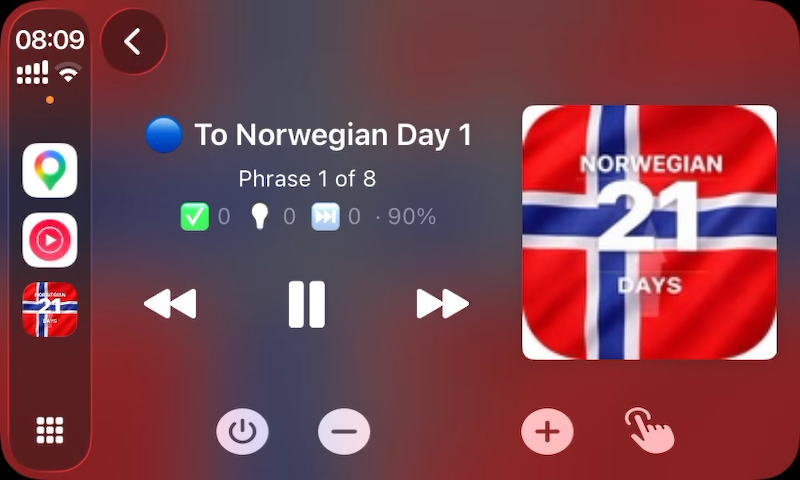
Hands-Free includes a screen lock that reduces accidental taps. Use Unlock to unlock by voice. During CarPlay or other in-car use, only operate the app when safe and lawful. Select the course and check the audio before driving.
In CarPlay, tap the finger button or say OK to enter command mode. Say Menu or Help for available commands.
Figure 26 – Hands-Free screen lock
Figure 27 – CarPlay
Apple speech recognition is tried first. If the answer does not match, Speech Recognition AI Backup can send the recording to OpenAI for another transcription. One attempt uses one AI Lookup.
Disable the feature if you do not want external AI transcription. Speech recognition can be affected by background noise, microphone distance, accent, speaking speed, incomplete recordings or unavailable recognition resources. Try again using a normal, clear speaking style.
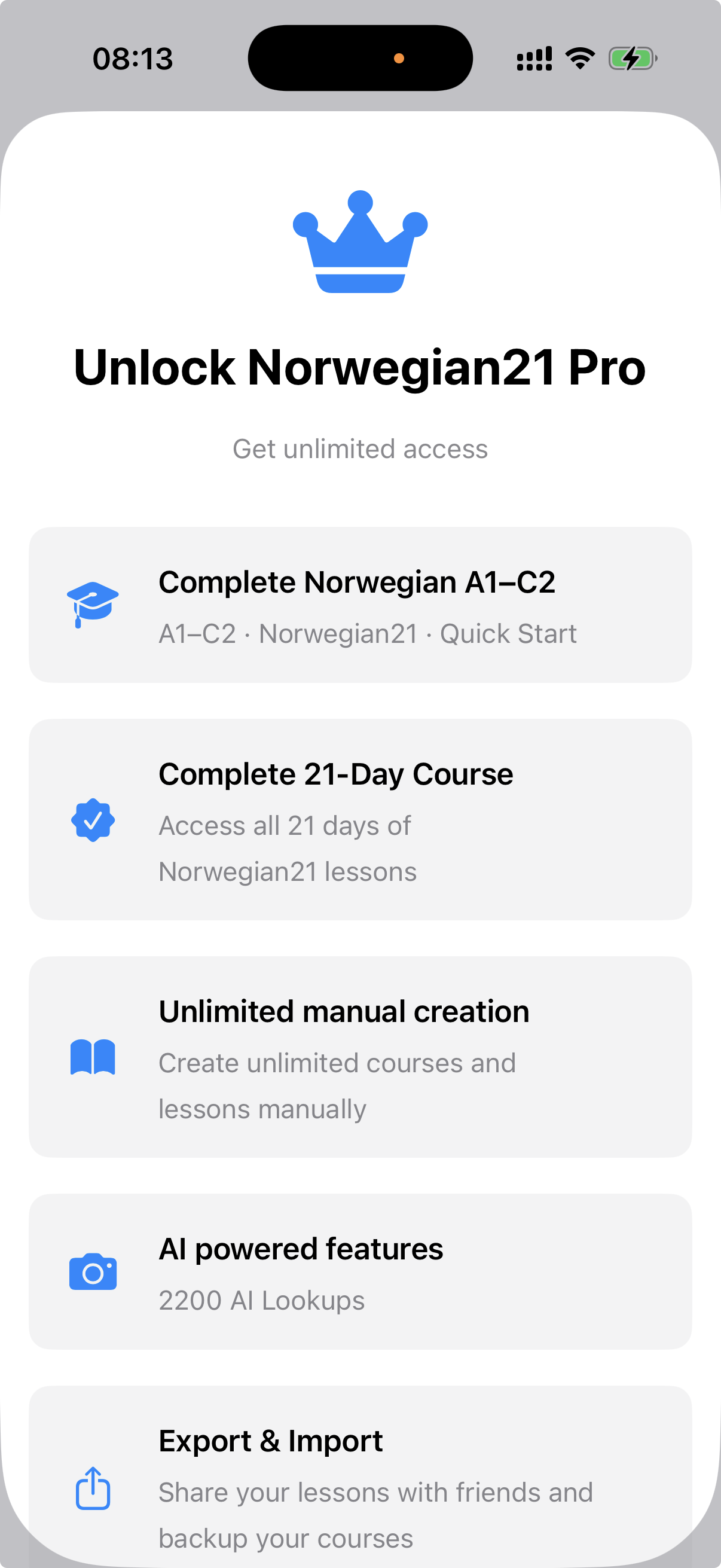
Free provides access to a limited part of the content and lets you try core features. Pro unlocks the Norwegian21 access described on the Upgrade view. Current purchase terms, price and exact access shown in the app take precedence over this manual.
Figure 28 – Upgrade
Check microphone permission, recognition engine and language; close another app using the microphone; then restart Norwegian21.
Check that Hands-Free is enabled, wait for speech playback to finish, say one clear “OK”, and look for the Hands-Free indicator.
Use the full CEFR address, such as “B1, chapter 5, lesson 3”. Check the course shown under Continue before using only “Lesson 3”. In My Courses, the number follows the ordering in the active course.
Check which answer language is expected, try again at a normal speed, check AI Backup if desired, use writing or multiple choice where available, and report recurring problems with the target phrase and transcript.
Check volume, audio route, Bluetooth/CarPlay and selected voices. Download the required iOS voice if it is not installed.
A1, chapter 1, lesson 1
Lesson 3
| Figure | Screen |
|---|---|
| 1 | First launch/language selection |
| 2 | Main menu |
| 3 | Course list overview |
| 4 | Expanded CEFR course |
| 5 | Quick Start and Norwegian21 |
| 6 | My Courses |
| 7 | CEFR lesson overview |
| 8 | Lesson menu |
| 9 | Try |
| 10 | Tune |
| 11 | Test with spoken answer |
| 12 | Test with multiple choice or writing |
| 13 | Talk |
| 14 | Results |
| 15 | Story/concept explanation |
| 16 | Dialogue Player |
| 17 | Ask the Teacher or AI Chat |
| 18 | Studio |
| 19 | Create Book Companion Course |
| 20 | Add lesson |
| 21 | Languages and voices |
| 22 | Speech recognition and AI Backup |
| 23 | Hands-Free settings |
| 24 | Passive Hands-Free |
| 25 | Command mode |
| 26 | Hands-Free screen lock |
| 27 | CarPlay |
| 28 | Upgrade |
This manual is based on Norwegian21 3.40 and the current menus, course navigation, exercises and voice commands. Screen text may be localised and therefore differ from the English examples. If there is a conflict, the functionality and help text in the installed app version take precedence.